5 Tips for Coloring Digital Line Art Like a Pro
23 de setembro de 2026
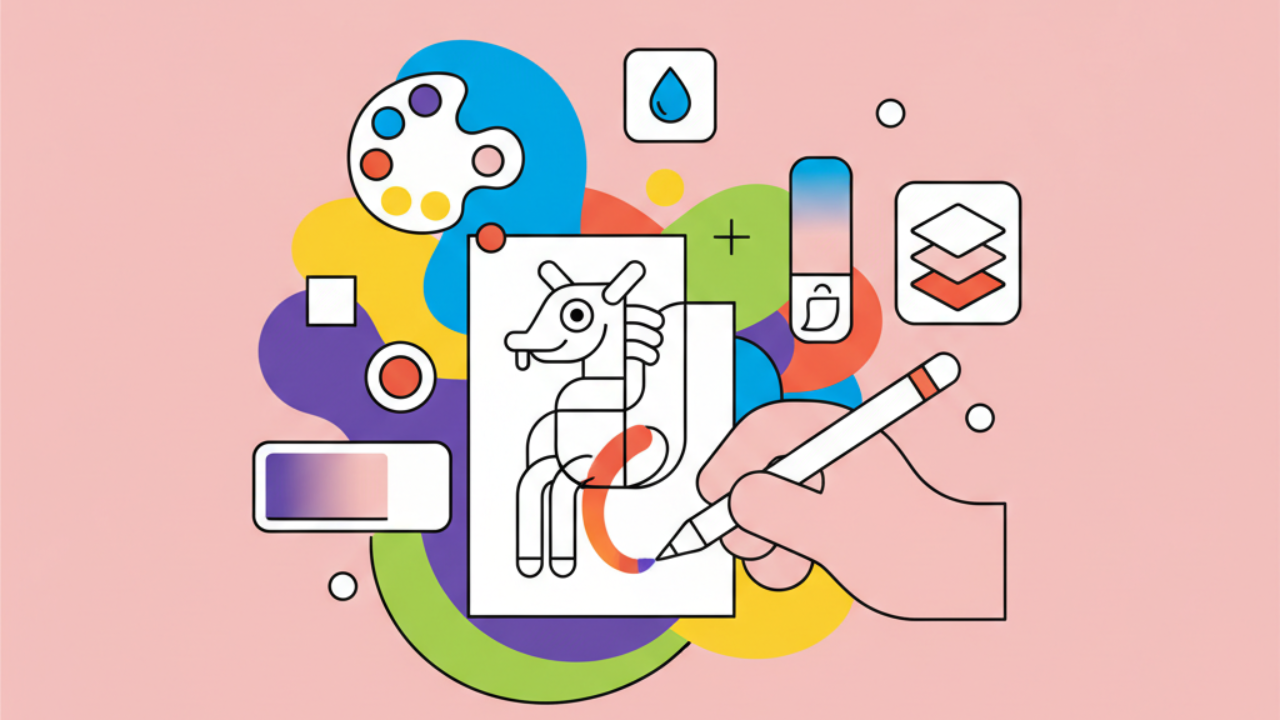
Discover practical tips to color digital line art perfectly with Desenhando e Colorindo. Learn how to master shadows and colors in your favorite coloring pages.
Mastering the Basics of Digital Line Art
For those used to browsing free coloring pages at Desenhando e Colorindo, making the leap to digital might feel like a technical hurdle. However, a great digital painting always starts with choosing clean, high-definition line art.
When selecting free drawings for digital coloring, ensure the resolution is high. This prevents pixelated edges when applying colors, allowing for a smooth and professional finish in every detail of your artwork.
The best part about digital line art is the ability to test endless color combinations without the fear of "messing up" the paper. At Desenhando e Colorindo, we offer a wide range of options that work perfectly for your printer, tablet, or computer.
Pro Tip: When opening your image in drawing software, always set the line art layer to "Multiply" blend mode. This ensures the black lines don't disappear when you paint on layers underneath.
1. The Power of Layers in Digital Painting
Unlike traditional coloring where every stroke is final, digital art lets you use layers. This is rule number one for anyone looking to master printable coloring pages on electronic devices.
Organize your workflow by separating elements. For example, if you're coloring one of our cute animal drawings, create one layer for the fur, another for the eyes, and one for accessories. This makes targeted fixes a breeze without affecting the rest of your work.
Using layers also lets you experiment with lighting effects in isolation. If a color feels too intense, simply lower the layer's opacity until you find the perfect tone for your educational or artistic project.
Setting Up Your Workspace
Before you start splashing colors, prep your digital brush. For basic fills, use hard-edged brushes that don't leave gaps between the kids' line art and the applied color. This avoids that "unfinished" look.
2. Choosing Palettes and Color Harmony
Many kids and adults feel overwhelmed by the color wheel. The trick is to keep it simple. Start with complementary colors for high contrast or analogous colors for a more soothing and relaxing look for your coloring sheets.
Think about seasonal vibes: for fall projects, use warm oranges and earthy browns. For spring-themed drawings, bright greens and pastels can breathe new life into the flower and landscape drawings available in our free gallery.
Remember, visual harmony is what turns a simple sketch into a digital masterpiece. Use palette generators for inspiration before you start coloring online, ensuring a balanced result.
- Primary Colors: Perfect for educational drawings, conveying high energy.
- Pastel Tones: Great for cute character designs and relaxing themes.
- High Contrast: Use these to make the main elements of the line art pop.
- Soft Gradients: Ideal for adding volume to curved surfaces like balls or fruit.
3. Shading Techniques for Depth
The secret to making a drawing look 3D is shading. Even in simple coloring pages, adding a light shadow under a character’s chin or in the folds of clothing changes everything.
Don't just use black to shade. An advanced tip is to use a dark blue or purple tone with low opacity. This creates a much more natural and vibrant shadow than pure gray, making your digital coloring book feel alive.
Keep an eye on your light source. If the light comes from the right, all shadows should be on the left. Consistent lighting is what tricks the brain into seeing depth.
4. Using Textures and Special Brushes
Digital art offers tools that paper simply can't match. You can use brushes that mimic watercolors, crayons, or even fabric textures to fill in the free drawings from Desenhando e Colorindo.
Adding a light paper texture over the entire piece at the end can give it a nostalgic, organic feel. This bridges the gap between digital painting and the physical sensation of traditional colored pencils that many printable art fans love.
Explore your digital pen's pressure settings. The harder you press, the more opaque the color, allowing for smooth blending that is essential for skin tones and sky backgrounds.
Essential Online Coloring Tools
- Paint Bucket: For quickly filling large areas of the line art.
- Blender Brush: To soften the transition between light and shadow.
- Clipping Mask: To paint strictly inside a pre-colored area without going outside the lines.
- Lasso Tool: To isolate specific areas and apply detailed effects.
5. Finishing and Exporting for Print
After putting in the work, the finishing touches are crucial. Check for "leaks"—small white pixels left near the black lines of your line art.
If you plan to bring your digital work back into the physical world, make sure to work in CMYK color mode. This ensures the colors you see on the screen match what comes out of your home printer when you decide to print your custom masterpiece.
Desenhando e Colorindo encourages you to save your colored versions and share them with friends and teachers, promoting creativity and using educational drawings as a fun pedagogical tool.
Printing Tip: If you're printing your digitally colored work, use heavier paper (like cardstock) so the colors pop and the paper doesn't warp from the printer ink.
Using AI to Spark Creativity
Lately, AI-generated drawings have become a great starting point for coloring enthusiasts. You can generate unique character ideas and then use your digital painting skills to give them personality.
Here at the site, we strive to blend the best of technology with the classic joy of painting. AI can help suggest color palettes, but the human touch—deciding where to put each shadow and the twinkle in a character's eye—is what truly brings the art to life.
Coloring activities involving technology are excellent for developing fine motor skills and spatial awareness in children, while also serving as a highly effective therapeutic hobby for stressed adults.
Tips for Teachers and Educators
Teachers can use these digital techniques in classrooms equipped with tablets. Digital coloring saves materials and allows students to explore color theory dynamically and without the mess.
Use our free printable coloring pages to host digital painting contests. This encourages tech literacy while keeping the focus on artistic expression and creative development for the little ones.
Frequently Asked Questions
What is the best software for coloring digital line art?
There are many free and paid options. For beginners, Krita and Ibis Paint X are fantastic. For pros, Adobe Photoshop and Clip Studio Paint offer the most complete tools for line art and advanced painting.
Can I color the site's drawings on my phone?
Yes! You can download your favorite drawing from Desenhando e Colorindo, open it in any mobile painting app, and use the fill tools to enjoy our coloring pages anywhere.
How do I stop the color from covering the black lines?
The simplest way is to place the image layer (line art) at the top of the layer stack and change the blend mode to "Multiply." This makes the white background transparent while keeping the black lines visible over anything you paint underneath.
Is it better to color with a mouse or a drawing tablet?
While you can color with a mouse using fill tools, a drawing tablet (or pen-enabled tablet) offers pressure sensitivity. This is key for creating soft shadows and natural strokes, making the coloring for kids and adults much more fluid.
We hope these tips help you level up your artistic creations. The secret to perfection is constant practice and exploring new tools. Be sure to browse our categories and pick some new drawings to color and print right now to put this knowledge to the test and awaken the artist within you!
Escrito e revisado por Armando Amaro
Fundador do Desenhando e Colorindo. Todo artigo passa por curadoria e revisão humana antes de ser publicado.